


Create or Join Team
Pair devices, split the key, and confirm both owners are in
Updated on
Forming a team creates a new shared wallet secured by multi-party computation (MPC), with the signing key split across both owners’ devices so no single device ever holds it all. One of you sets up the team and the other joins, then you pair on both phones to finish. You can create or join more than one team, each with different people.
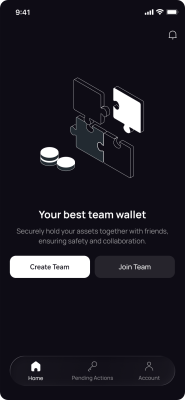


- Step 1
If you don’t have a team yet, tap Create Team on the home screen.
If you already have a team:
• Tap your team name at the top of the home screen, then tap Create / Join Team in the Switch Team drawer.
• or go to Account, tap Manage Teams, and tap the + button in the top right. - Step 2Share the 6-digit invitation code with your co-owner. Tap Invite to send it, or Copy Code and pass it along yourself.
- Step 3Wait for your co-owner to join. When you see they’re in, tap Start Pairing.
- Step 4Keep both phones on the pairing screen until syncing finishes.
- Step 5Your team is created. Both of you are owners with full control and signing authority.


- Step 1
If you don’t have a team yet, tap Join Team on the home screen.
If you already have a team:
• Tap your team name at the top of the home screen, then tap Create / Join Team in the Switch Team drawer.
• or go to Account, tap Manage Teams, and tap the + button in the top right and click Join Team on the Add team page. - Step 2Enter the 6-digit invitation code your partner shared with you.
- Step 3Keep both phones on the pairing screen until syncing finishes.
- Step 4Your team is created. Both of you are owners with full control and signing authority.